.png)


Is your I2C sensor not being detected by the microcontroller? Does the address scanner return no results, or does the sensor continuously produce incorrect readings? In many cases, this does not mean that the sensor is defective. Incorrect SDA and SCL connections, an unsuitable supply voltage, missing pull-up resistors, address conflicts, or an incorrect I2C address in the software can completely prevent communication.
In this guide, we will examine why I2C sensors may not be detected and explain how to identify the problem step by step.
How Does I2C Communication Work?
I2C is a two-wire communication protocol that allows a microcontroller to communicate with one or more sensors over the same bus. Its main connections are:
- SDA: The line used to transfer data
- SCL: The line that carries the clock signal
- VCC: The sensor's power supply connection
- GND: The common ground connection
Multiple devices can share the same SDA and SCL lines. The microcontroller uses an I2C address to determine which device it wants to communicate with. Devices connected to the same bus must therefore use different addresses.
1. Check the SDA and SCL Connections
Incorrect SDA and SCL wiring is one of the most common reasons why an I2C sensor cannot be detected. The sensor's SDA pin must be connected to the controller's SDA pin, while its SCL pin must be connected to the controller's SCL pin.
Arduino Uno and similar ATmega328P-based boards normally use the following connections:
| Sensor Pin | Arduino Uno Connection |
|---|---|
| VCC | 3.3V or 5V, depending on the module's operating voltage |
| GND | GND |
| SDA | A4 or the dedicated SDA pin |
| SCL | A5 or the dedicated SCL pin |
Pin order can also vary between sensor modules. Do not connect the wires only according to their physical positions. Follow the VCC, GND, SDA, and SCL markings printed on the circuit board.
2. Check the Sensor's Supply Voltage
An I2C sensor module may be designed to operate at 3.3V, 5V, or both voltage levels. Supplying an unsupported voltage can prevent communication or permanently damage the sensor.
- Check the operating voltage on the product page or datasheet.
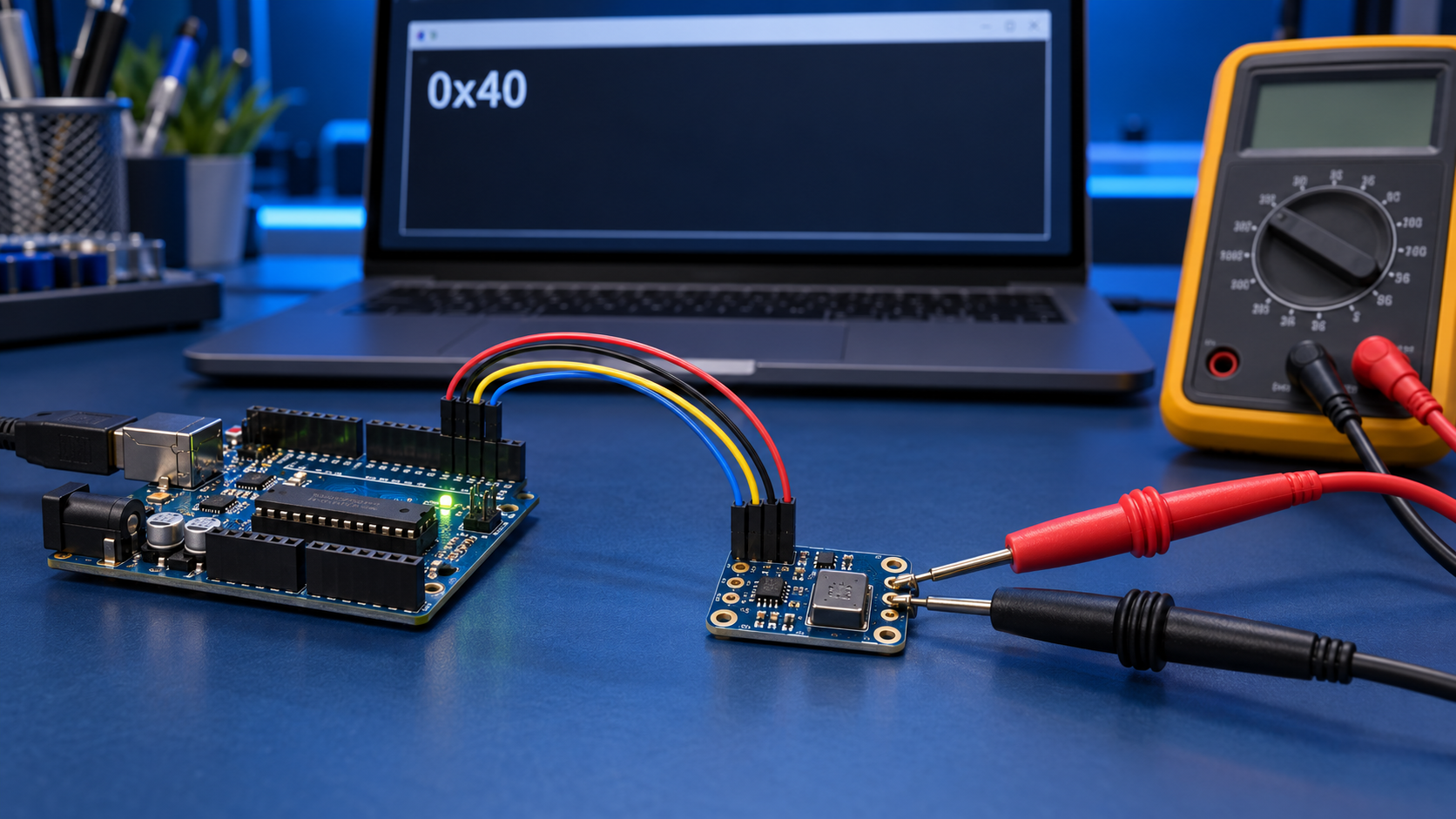
- Measure the voltage between VCC and GND with a multimeter.
- Make sure the sensor and microcontroller share a common ground.
- Do not confuse a bare sensor IC with a sensor module that includes a voltage regulator.
For example, pulling the SDA and SCL lines of a 3.3V sensor up to 5V may be unsafe. If the microcontroller and sensor use different logic levels, a bidirectional logic-level converter may be required.
3. Find the I2C Address with a Scanner
If the wiring appears correct, the next step is to perform an I2C address scan. The scanner sends a request to each possible address and displays every responding device in the serial monitor.
Arduino I2C address scanner code
#include <Wire.h>

void setup() {
  Wire.begin();
  Serial.begin(115200);

  while (!Serial) {
    ;
  }

  Serial.println("I2C address scan started.");
}

void loop() {
  byte error;
  byte address;
  int detectedDevices = 0;

  Serial.println("Scanning...");

  for (address = 1; address < 127; address++) {
    Wire.beginTransmission(address);
    error = Wire.endTransmission();

    if (error == 0) {
      Serial.print("I2C device detected at address: 0x");

      if (address < 16) {
        Serial.print("0");
      }

      Serial.println(address, HEX);
      detectedDevices++;
    } else if (error == 4) {
      Serial.print("Unknown error at address: 0x");

      if (address < 16) {
        Serial.print("0");
      }

      Serial.println(address, HEX);
    }
  }

  if (detectedDevices == 0) {
    Serial.println("No I2C devices detected.");
  } else {
    Serial.println("Scan completed.");
  }

  Serial.println();
  delay(3000);
}
Open the serial monitor at 115200 baud. If the sensor is detected, an address such as 0x3C, 0x40, 0x68, or another sensor-specific value will appear. The address used in your program must match the address detected by the scanner.
4. Check the Address Selection Pins
Some sensor and display modules include address selection pins such as A0, A1, A2, ADDR, or SA0. Connecting these pins to GND or VCC can change the device's I2C address.
Even if the sensor library uses a default address, the module may operate at a different address when a solder jumper or address pin has been changed. Always use the address reported by the scanner instead of relying only on the expected default address.
5. Check for Devices Using the Same Address
If two devices connected to the same I2C bus use the same fixed address, the microcontroller cannot control them independently. This situation is known as an address conflict.
You can solve an address conflict using one of the following methods:
- Use the sensor's address selection pin or solder jumper, if available.
- Configure one sensor to use a different address if software address changes are supported.
- Connect the devices to separate I2C buses.
- Use an I2C multiplexer to place the devices on separate channels.
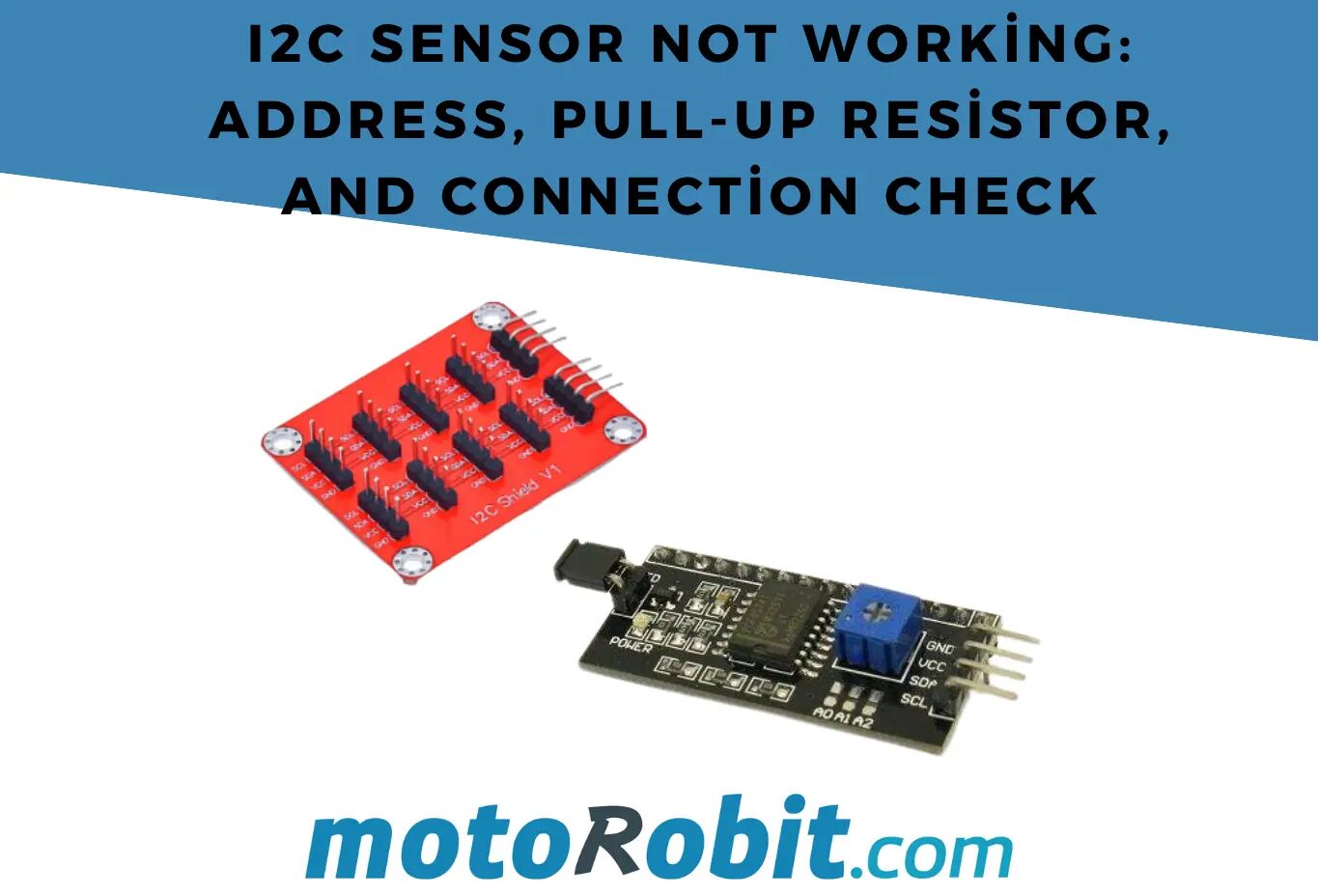
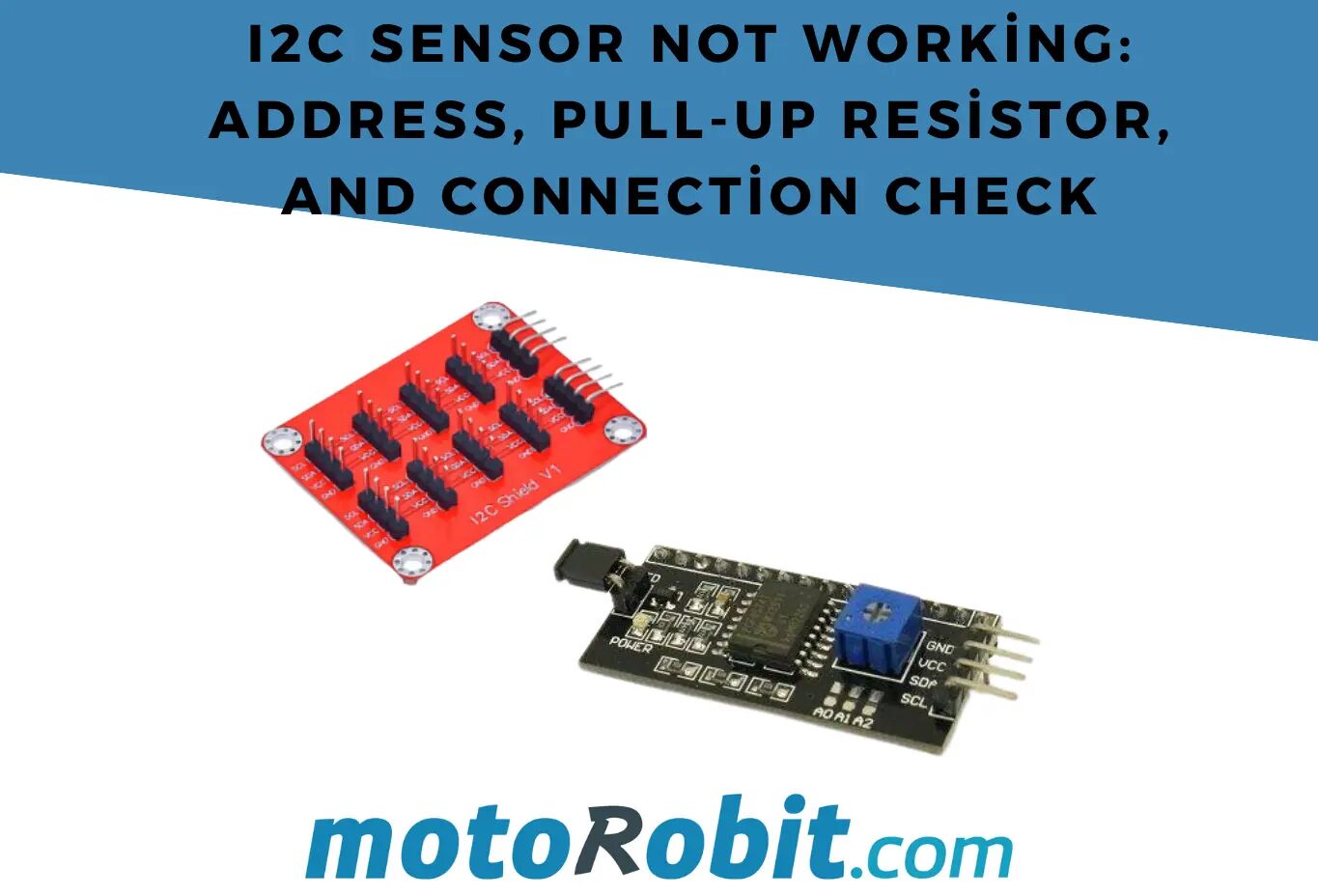
Not every I2C expansion board resolves address conflicts. A distribution board that only connects the SDA and SCL lines in parallel leaves every device on the same bus. The Motorobit IIC/I2C Expansion Module simplifies wiring, but it is not a multiplexer and cannot separate devices that use the same address.
6. Check the Pull-Up Resistors
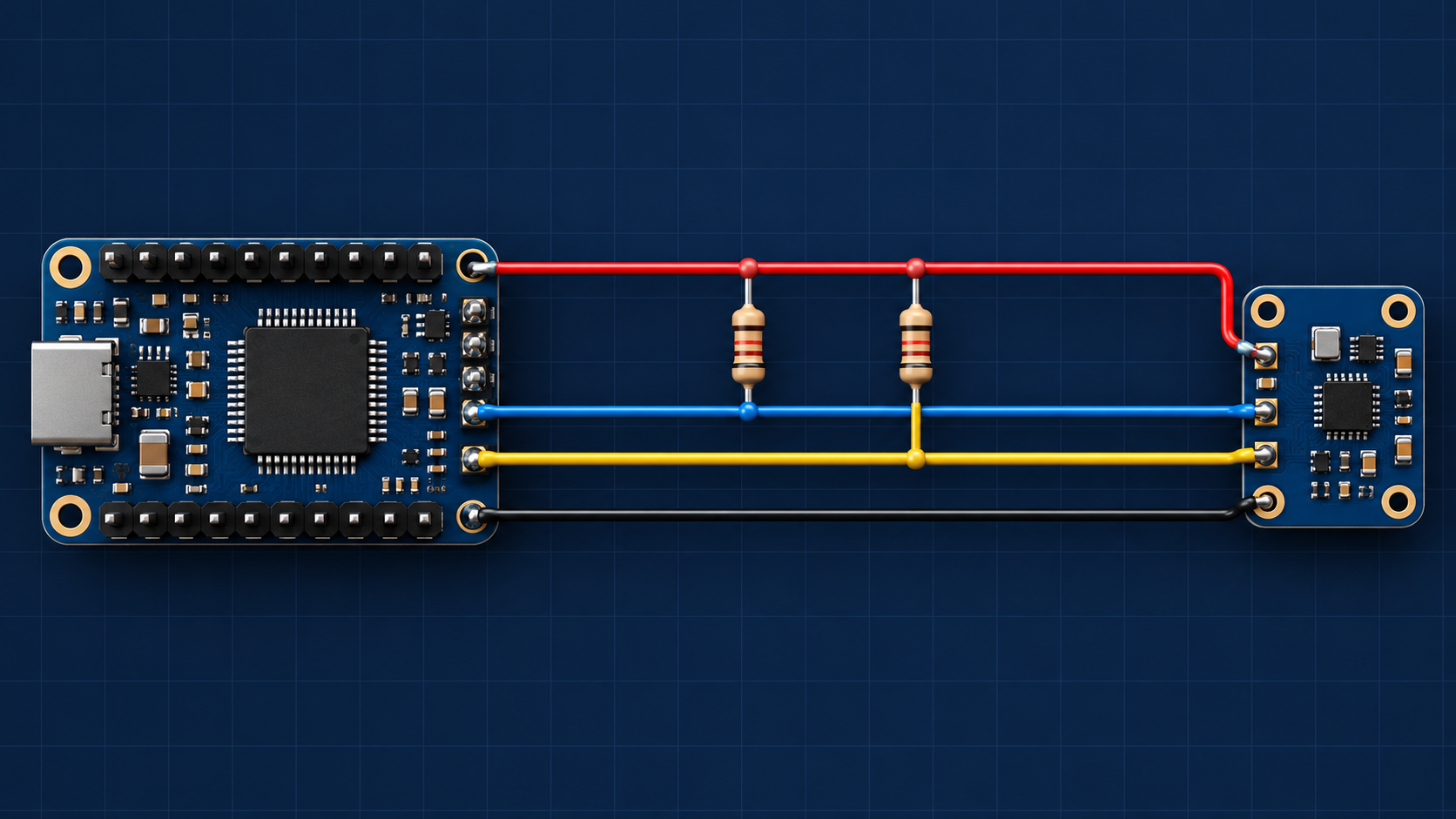
SDA and SCL use open-drain or open-collector outputs. Connected devices pull these lines low, but they do not actively drive them high. Pull-up resistors are therefore required to return SDA and SCL to the logic-high level.
In a typical connection:
- SDA is connected to the logic supply voltage through a pull-up resistor.
- SCL is connected to the logic supply voltage through a separate pull-up resistor.
- Each signal line requires its own resistor.
For short wiring in a standard circuit, 4.7 kΩ is a commonly used starting value. However, the correct resistance depends on the operating voltage, communication speed, cable length, and total bus capacitance.
What happens if there are no pull-up resistors?
- The address scanner may not detect any devices.
- Communication may stop intermittently.
- The sensor may work only at lower clock speeds.
- SDA or SCL may remain at an unstable voltage level.
What happens if there are multiple pull-up resistors?
Many sensor modules already include onboard pull-up resistors. When several modules are connected to the same bus, their resistors are connected in parallel, reducing the total resistance.
For example, two 4.7 kΩ resistors connected in parallel produce an equivalent resistance of approximately 2.35 kΩ. If many modules are connected, the equivalent resistance may become too low, making it difficult for devices to pull the lines down to a valid logic-low level.
Missing pull-up resistors are therefore not the only possible problem. Too many pull-up resistors can also cause communication errors. Check the circuit diagrams of the modules and calculate the total pull-up resistance on the bus.
7. Check Cable Length and Connection Quality
I2C was primarily designed for short-distance communication on or between circuit boards. Long, loose, or poorly routed cables can distort the signal edges and cause communication errors.
- Keep the cables as short as possible.
- Replace loose or damaged jumper wires.
- Check the contact points on the breadboard.
- Keep SDA and SCL away from motors and high-current power cables.
- Use a multimeter to test continuity between the sensor and microcontroller pins.
- If the cable is long, reduce the I2C clock speed and test again.
If the sensor works with short wires but stops communicating when the wires are extended, the problem is probably related to bus capacitance, signal integrity, or electrical interference.
8. Reduce the I2C Clock Speed
Some sensors, long cables, and high-capacitance connections may not operate reliably at high communication speeds. On Arduino, the I2C clock frequency can be configured as follows:
#include <Wire.h>

void setup() {
  Wire.begin();
  Wire.setClock(100000); // 100 kHz
}

void loop() {
}
If the circuit produces errors at 400 kHz, test it at 100 kHz. Reducing the clock speed will not correct a fundamental wiring problem, but it can improve the stability of a bus that is operating near its electrical limits.
9. Check Whether the SDA or SCL Line Is Stuck Low
A power interruption, an incomplete data transfer, or an unexpected sensor reset can leave the SDA line at a low level. When this happens, the I2C bus may become locked and the microcontroller may be unable to communicate with any device.
Try the following procedure:
- Completely disconnect power from the sensor and microcontroller.
- Wait for a few seconds.
- Check the connections again.
- Restore power to the system.
- Run the I2C address scanner again.
If the problem occurs frequently, check for sudden voltage drops, verify the sensor's startup timing, and examine how the software handles bus errors.
10. Check the Sensor Library and Initialization Code
If the sensor appears in the address scan but you cannot read measurements, the physical bus is probably working. The problem may instead be related to the software, library, or sensor initialization settings.
- Make sure the correct sensor library is installed.
- Verify that the library supports your exact sensor model.
- Make sure
Wire.begin()is called. - Pass the correct I2C address to the library.
- Check the return value of the sensor's
begin()function. - Add a short startup delay if required by the sensor.
if (!sensor.begin(0x40)) {
  Serial.println("Sensor could not be initialized.");

  while (1) {
    delay(10);
  }
}
The 0x40 address shown here is only an example. Use the address reported by the scanner and the library recommended for your sensor.
Quick Troubleshooting Table
| Symptom | Possible Cause | What to Check |
|---|---|---|
| No devices appear in the scanner | Incorrect wiring, missing power, or missing pull-up resistors | Check VCC, GND, SDA, SCL, and the line voltages |
| The address appears, but data cannot be read | Incorrect library, initialization settings, or register usage | Verify the example code and exact sensor model |
| The sensor is detected intermittently | Loose connection, interference, or unsuitable pull-up resistance | Shorten the wires, renew the connections, and reduce the clock speed |
| One sensor works, but adding a second sensor breaks communication | Address conflict or excessively low equivalent pull-up resistance | Check the addresses and onboard pull-up resistors |
| The sensor works with a 3.3V board but not with a 5V board | Logic-level incompatibility | Check the datasheet and use a level converter if necessary |
| Communication stops when longer cables are used | Bus capacitance or electrical interference | Shorten the cable or reduce the communication speed |
Step-by-Step I2C Troubleshooting Sequence
- Identify the sensor's operating voltage.
- Check the VCC and GND connections.
- Make sure SDA and SCL are connected to the correct pins.
- Use a common ground between the microcontroller and sensor.
- Run an I2C address scanner.
- Compare the detected address with the address used in the program.
- Check the pull-up resistors on SDA and SCL.
- Check whether another device uses the same address.
- Shorten the cables and replace loose connections.
- Reduce the communication speed and test again.
- Use the correct sensor library and example code.
- Disconnect other modules and test the sensor by itself if necessary.
I2C Products for Your Projects
You can find development boards, sensors, and connection modules for your I2C projects at Motorobit: